
Data View
A Data View is a VS Code editor tab on the rows of one Connection. It holds a query, the rows PostgreSQL answered with, and — where the rows belong to exactly one table — the changes you have made to them and not yet written.
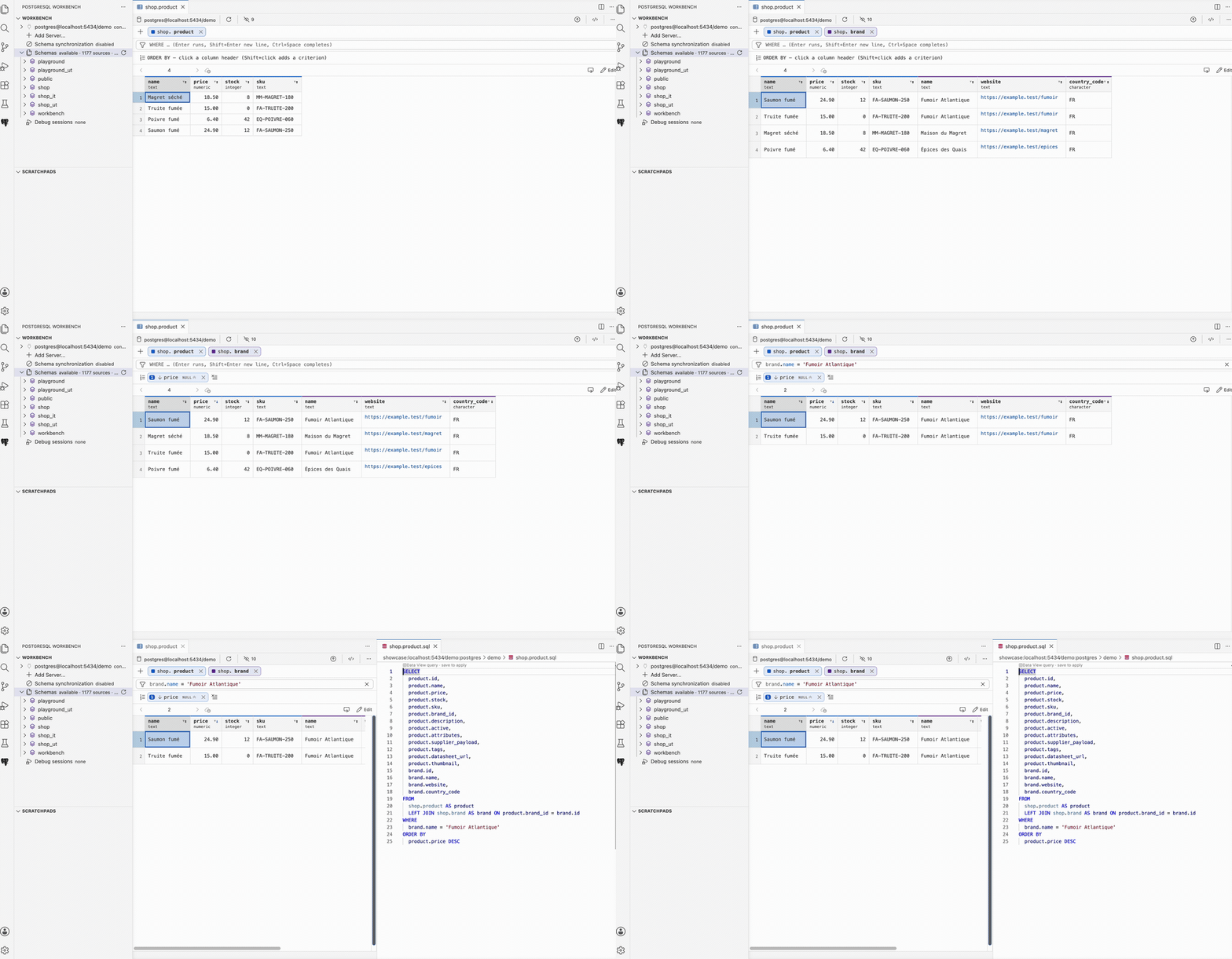
The query is yours to compose from inside the view: add a column, join a related table, filter, sort, or take a table back out. The Connection never changes implicitly; a Data View runs against the Connection it was opened from, like every other Workbench surface.
Open one
- From the database tree — select a table or a view and use Open Data View, the table icon on the item.
- From a SQL editor — PostgreSQL Workbench: Open Data View for Statement
opens the statement under the cursor in a
.sqlor.pgsqlfile that has a Connection Association. A relation opens on an explicit projection of its columns, written from the Workbench Index — neverSELECT *. A statement opens exactly as you wrote it.
Compose the query
Every table the query draws from has a badge above the grid, in the accent color its columns carry in the header. The badge takes that table back out of the query, along with everything that referenced it.
The add control beside the badges offers everything the query can grow by: the columns of a table already in it that are not projected yet, the tables related to that table through foreign keys, then every other table and view of the database. Choosing a related table joins it on the key the planner chose — the shortest path it can prove from the foreign keys — and brings its columns into the projection. A column heading menu edits the projection of the column it belongs to.
The menu is reachable from the keyboard alone: type to filter, walk down, press Enter. Every menu of the view answers the same keys — the arrows walk it, Home and End reach its ends, Escape leaves it, and the focus goes back where it was.
Show the SQL opens the statement the view is running at that moment, with a control that copies it as it stands — ready to paste into a Scratchpad or a SQL file. It is coloured twice over: by the grammar, like any SQL, and by what the language server makes of its names — a schema, a relation, the alias standing for it, a column of it, a routine — each told apart from the others.
Filter, sort, and search
The filter box takes a WHERE expression. Enter runs it, Shift+Enter starts a
new line, and Ctrl+Space asks the language server for completions — the columns
and functions the Connection actually has, not the labels already on screen.
A column heading menu sorts ascending or descending, adds a second criterion to an existing sort, or clears it. Pressing a criterion turns it over. A NULLS ordering is written into the SQL only where it differs from what PostgreSQL would do on its own.
Find in these rows searches what the grid draws and walks the matches. It matches what is on screen rather than what the database holds, so a pending edit is found by its new value, and it never goes back to the database.
What the grid shows
- Hide a column without dropping it from the query, move it left or right, and give it a width by dragging its edge or from the keyboard. The Show or hide columns control counts what is hidden and shows it all again.
- Identity and relationship columns start hidden. They stay projected, so
rows remain identified and editable, and that same control offers them back as
a group. Set
postgresql-workbench.dataView.hideKeyColumnstofalseto show them from the start. A column a new row cannot go without is revealed the moment you add one. - An address in a cell is a link. Ctrl/Cmd+click follows the address, so an
ordinary click still selects the cell it lands on.
From the keyboard, the cell menu's Open follows it. Only
httpandhttpsaddresses are ever offered, and only those are ever opened. - Large relations page. Each page is an independent
LIMIT/OFFSETquery; no PostgreSQL cursor or Transaction remains active while you inspect it.
Whatever is hidden is hidden everywhere: what the grid draws, what a copy takes, and what an export writes cannot disagree about it.
Filter from a cell
Right-click a cell — or press Shift+F10, or the Menu key, on the cell the cursor
is on — for what can be done with what it holds: Filter keeps the rows whose
column holds that value, Exclude keeps the others, Inspect opens the
value whole, Open follows an address the cell holds, and Copy takes the
selection. An empty cell filters on IS NULL, which is what a reader asking for
the empty ones means.
The condition is written into the filter box rather than applied behind you: it
names the relation the way the query names it, it adds to a condition already
there with AND, and you can correct or undo it like anything else you typed. A
value that cannot stand for itself — a computed column, a json — says so
instead of composing SQL that would fail.
Edit rows
Rows can be written when the query draws them from exactly one table and projects that table's identity — its primary key, or a NOT NULL unique index — exactly once. Over a join, no single table owns the row, so rows can be neither added nor deleted, and the view says so where the controls would be.
A cell that cannot be written says why when you reach it:
| Reason | What it means |
|---|---|
| Computed value | It does not come from one stored column. |
| Row identity is not projected | Include the primary key columns to edit. |
| Identity value | A primary key, or an identity PostgreSQL generates. |
| Relationship value | It holds this row to the relation the query joined. |
| Generated column | PostgreSQL computes it. |
| Binary values are read-only | bytea is not edited in the grid. |
| Ambiguous | The table appears more than once in the query. |
Within those rules you can edit cells in place, add a row and fill it in, put a copied row into a new one, paste a tab-separated block across the columns from where it lands, and copy a selection the way a spreadsheet would. Selecting works both ways: a rectangle of cells in the grid, or whole rows from the gutter.
Before a row is taken away, the view says what the deletion drags along — the rows that reference it, and what PostgreSQL will do to them under each foreign key.
Nothing is written until you apply. The status line counts the pending changes and says what each one will do. Apply (Ctrl/Cmd+S) writes them in one transaction: deletions first, then the edited cells, then the added rows. Each statement is parameterized and guarded against the row having moved — an update carries the values it was made against, and a row that changed or disappeared since it was loaded stops the whole transaction. Nothing is applied, the transaction rolls back, and the view says which row it was in a band across its top; refresh and edit again. Discard drops every pending change without touching the database.
Export
Export rows writes the selection, the rows currently loaded, or every row of
the query, as CSV, TSV, JSON, SQL INSERT statements, or Markdown. The delimiter
is yours to choose, hidden columns are left out, and the dialog shows what will be
written before anything is. INSERT statements are offered only where one table
owns the rows.
See also
- SQL scratchpads — where a statement and its result live when you are writing SQL rather than reading rows.
- SQL authoring — the indexed completion, formatting, and composition the filter box and the query menus use.
- Commands and settings — every Data View command and setting.